Use the desktop app
Browse packages, build a bundle, and export it to a USB drive from your online Linux computer.
On this page
The desktop app helps you choose packages and prepare bundles. Run it on your online Linux computer. The offline machine uses the CLI to take snapshots and install packages.
Start with desktop app setup. Check the supported desktop systems first. The app checks for the CLI and the tools it needs when you open it.
Install the desktop app and CLI
Download the Linux amd64 desktop .deb and CLI .deb from the same release on
the download page. Verify the desktop package using
debark-gui_checksums.txt and the CLI using debark_checksums.txt; follow
download verification.
From the directory containing both verified packages:
# Download and verify both .deb files from this release
sudo apt install ./debark_0.1.1_amd64.deb \
  ./debark-gui_0.1.1_amd64.deb
debark-gui
Ubuntu 24.04 / 26.04 or Debian 13, amd64. apt installs the desktop runtime dependencies and puts the CLI on PATH.
Open Debark from your applications menu or run debark-gui. The CLI must be
discoverable on PATH; it is a separate download. Open System check in the app
if a prerequisite is missing. apt installs GTK and WebKitGTK runtime libraries.
The Linux package supports Ubuntu 24.04 / 26.04 and Debian 13 on amd64. It cannot satisfy the desktop library requirements on Ubuntu 22.04 or Debian 12; use the CLI there, or build on a newer machine. Those older releases can still be offline targets.
The Windows desktop ZIP is experimental, with limited validation and no support commitment. It requires the Windows CLI on PATH, WebView2, Docker or Podman running Linux containers, and a Linux CLI helper for the target architecture. See the Windows record. There are no desktop releases for Linux arm64 or macOS.
For source builds and development, follow the desktop README.
Choose a target
Choose a baseline OS or import a snapshot:
- Baseline OS: select a Debian or Ubuntu release, variant, and architecture in the app. No snapshot file is needed. The baseline assumes a stock installed package set.
- Snapshot: use the actual package state of your offline machine. This is more accurate for a customized installation.
To create a snapshot, run this on the offline machine and copy the file to your online computer:
debark snapshot create --out target.tar.zstSee Build with a baseline OS for the available variants and how to check that the baseline fits the real machine.
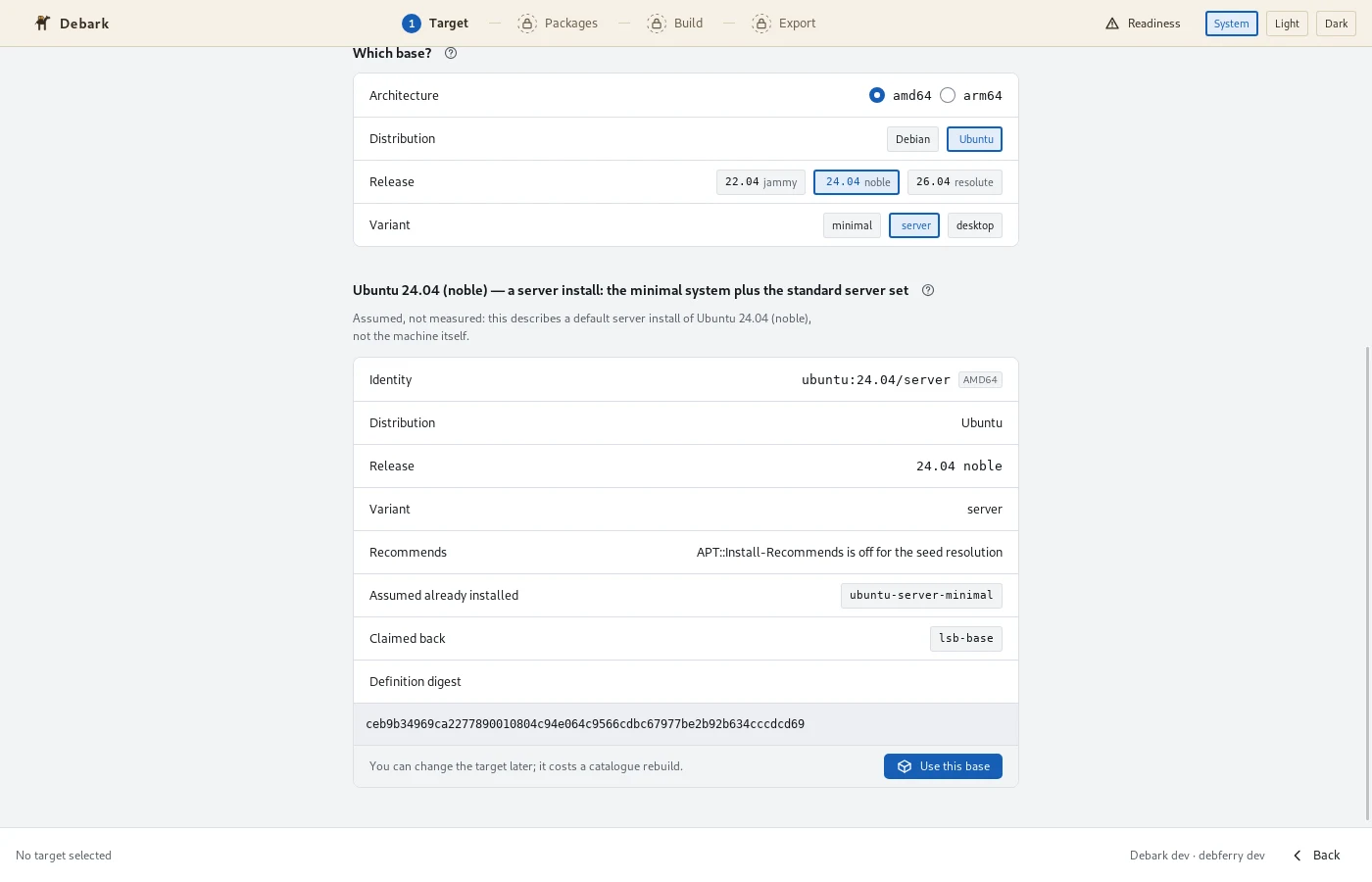
Choose packages
Search or browse the catalogue and add the packages you want. You can also add vendor .deb download URLs or local files.
You don’t need to select dependencies one by one. The CLI works those out when it builds the bundle.
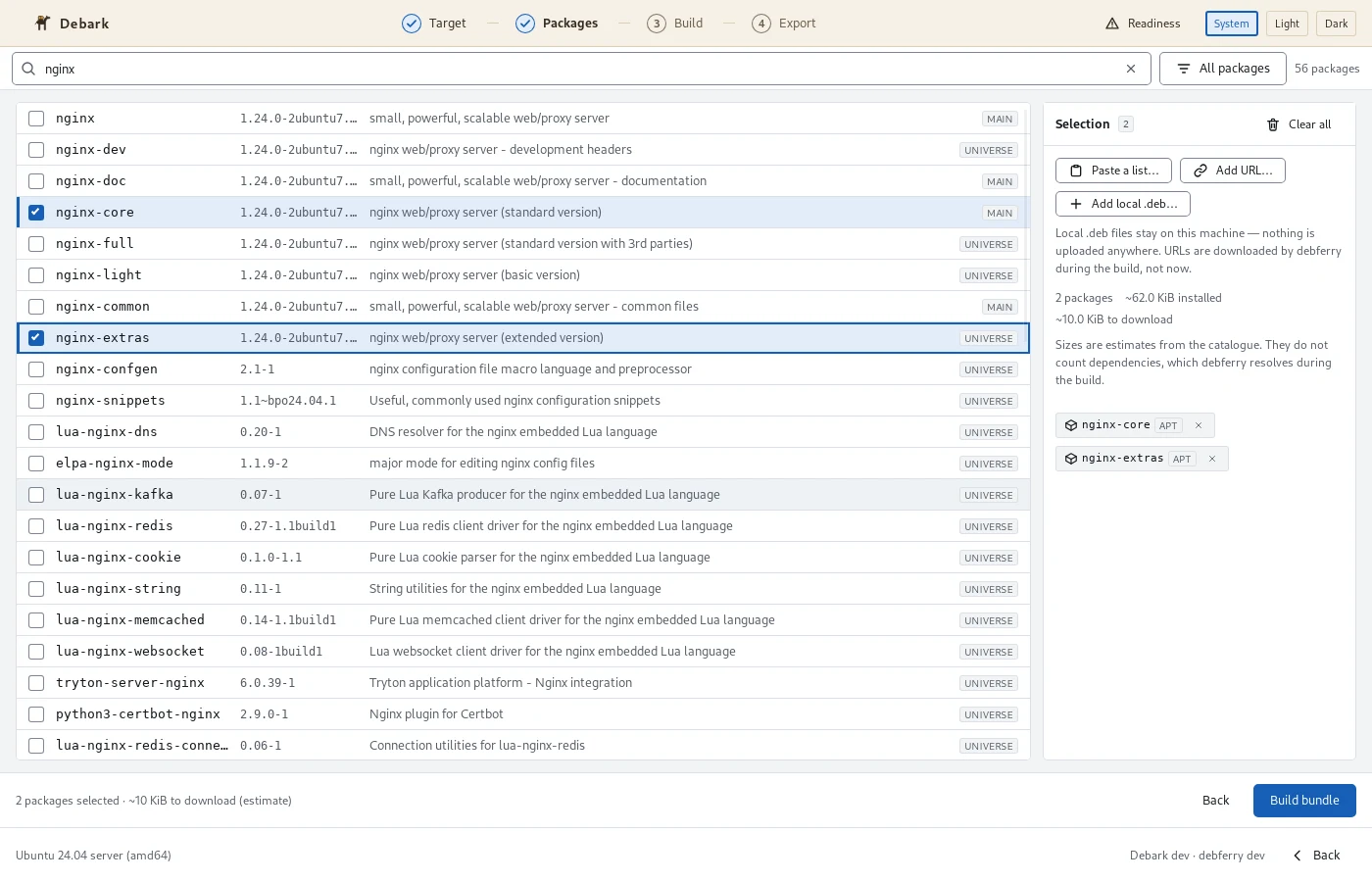
Build the bundle
Choose an output folder and review the build settings. To sign the bundle, create a key with the CLI and select it in the app:
debark keygen --out operator.keyKeep this private key on your online computer. You can reuse it for later builds.
Start the build and follow its progress. If a step fails, the app shows the error so you can fix the request and try again.
Export and install
Choose a folder or mounted USB drive for the bundle. The app checks available space, copies the files, and verifies the copy.
On the offline machine, install the bundle with the CLI. For a signed bundle, the public key must already be available through a trusted route and stored outside the bundle folder:
sudo debark install ./bundle --key operator.pub --dry-run
sudo debark install ./bundle --key operator.pub
The quickstart explains the public key transfer and installation steps. The desktop app exports ordinary files; it doesn’t format the drive.